The imitation game
This movie is about Alan Turing, a man who was vilified in his lifetime but is celebrated as one of the most brilliant minds of the 20th century. Turing is frequently credited with setting the foundation for today’s digital revolution, especially around Artificial Intelligence and Machine Learning.
You don’t have to be a technical person or a part of a technology company to enjoy this movie or to understand the challenges anyone can face in their life and career. It also has an inspiring underlying message: brilliance can come in any form, even unexpected ones.
Catch me if you can
This somewhat-light-hearted film exemplifies the entrepreneurial journey. It shows some of the key qualities every entrepreneur should have, including a thick skin and the ability to think fast on their feet. The movie also touches upon other important themes like problem-solving and perseverance. Watching it will inspire you to look for creative solutions even when stuck in a difficult situations.
Wall Street
This 1987 classic can get a little heavy in terms of financial jargon. However, its main themes of human greed and morality will strike a chord with you. You will see that it can be easy to obsess over money and get carried away by a glamorous, wealthy lifestyle. More importantly, you will understand how to avoid falling into this trap and remain an ethical and moral person who maintains their self-respect.
The Godfather trilogy
If one word could describe these movies, it has to be “relationships”. Each film in the trilogy shows why relationships are so important for any business (even an illegal one!). Don’t worry about the frequent references to an unfamiliar culture or lifestyle and focus on its main lessons: build a strong network, focus on helping people, and always keep an eye on the competition.
The Devil wears Prada
This is not a frivolous movie about fashionistas and shallow people! Although the film is set in the fashion industry, its lessons apply everywhere: treat others with respect, be professional in every situation, do your best even when struggling, and never ever give up on your beliefs and values.
]]>#1: Consider Multiple Options – But Know Your Limits
Are you the kind of person who makes snap decisions? Sometimes, fast decision-making is required to ensure that you don’t miss out on opportunities or increase the risk to your business. But in many other cases, impetuousness and rash decisions can be fatal to your company and people.
That’s why it’s important to consider multiple perspectives and options before making a decision. Explore various choices and the risks and rewards of each. Also get feedback and inputs from various people to inform your decision-making process.
#2: Take your Time
Again, don’t be hasty. Spend some time assessing your various options and possible repercussions before you decide to do something one way or another. Also be on guard against only reviewing choices that seem expedient or easy. Sometimes the best choice is not always obvious so take the time to think about multiple options before you pick one that works best for your firm.
#3: Use Emotions, Facts, Visualisations to Inform Your Decision
Risk is a part of every business decision. However, you can reduce the risk and increase the chances of making a good decision by including emotions, facts, and visualisations in the process. Use all the information you have to guide your decision.
Use logic and data wherever possible. But don’t discount the value of emotions, human experience, suggestions, and good old common sense. Also use your moral and ethical beliefs to understand the situation and then decide if Choice A is better or Choice B.
Conclusion
Business decision-making is not easy. However, it is crucial. Hopefully, these strategies will help you make the best possible decisions that benefit your company, people, and customers.
]]>Litera Check = Contract Companion + Litigation Companion + DocXtools
Litera Check provides an all-in-one solution to proofread, repair, and correct legal documents quickly, without hassle, and with highest quality. Legal professionals are too busy working on cases and looking for ways to increase billable hours. Litera Check takes away the headache of document proofreading, so they can confidently focus on these crucial tasks.
With Litera Check, lawyers and paralegals can easily:
- Analyse the legal health of documents
- Proofread defined terms, citations, numbering, etc.
- Fix errors in a single click or one-by-one
- Repair and build TOCs, TOAs and TOPAs in seconds
The product is easy to use thanks to its single task pane, add-in, and installer. Through its many world-class capabilities, users can easily:
- Identify and repaid errors in the technical structure of documents
- g.: numbers and formatting issues
- Proofread for errors in the legal structure of documents
- g.: citations and defined terms
Then, before finalising the document and sharing it with relevant stakeholders, they can:
- Quickly review defined terms, citations, numbering, spacing, and quotations
- Build TOAs, TOCs, and TOPAs in seconds
- Apply hyperlinks to case citations and references from many online research providers
- Clean up documents converted from Word to PDF
- Apply or import styles to create consistent documents fast
Litera Check streamlines the document review process and helps create error-free, high-quality documents every single time.
To see Litera Check in action, contact Prime Infotech Solution .
Book your Slot with Solution Expert for 30 mins Consultation Call:
Bitly: https://bit.ly/BookyourSlotwithSolutionExpert
To you success
]]>Documentation mistakes are particularly common in the modern business landscape. A few small and occasional mistakes can be ignored. But what if one of your staff members makes a serious mistake in a contract? A will? An agreement? A subpoena? Errors in legal documents or documents with some kind of legal standing can be a serious problem for your company.
You can train your people not to make such mistakes. But there’s still no guarantee that they will never make them because as we said earlier, they are human. So how can you fix documentation errors and minimise the chances that an error will go through and bite you later?
Simple answer: technology!
Documentation software can help you with proofreading and repair. Our favourite is Litera Check. Litera Check provides a simple way to identify and repair errors in legal documents in just a few minutes. The software speeds up the review process so you and your team no longer have to spend hours or days fixing problems. Instead, you get clean, error-free contracts and agreements quickly so you can get going with other important tasks, such as talking to clients and moving cases forward.
Want to know how Litera Check can benefit your company and document workflows? Contact the team @ Prime Infotech. They will show you how this product can help you analyse, proofread, and repair documents to improve turnaround times and more importantly, eliminate the burden of repetitive (and boring!) work.
]]>With our integration with Outlook, Word, and the leading document management systems, you can compare without leaving your applications.
Check out our documentation to see how Workshare Compare 8 helps you stay ahead of the game.
Workshare Compare accurately detects changes across any two documents in seconds. This market-leading document comparison solution integrates into your working life, whether you’re working from a desktop, the cloud, or on the go, so you never miss a beat. People collaborate on files every day. Changes in files are hard, if not impossible to spot side by side. Failing to spot a change, even a minor one, can put your reputation at risk. But that is a thing of the past from now on, because with WorkShare Compare from Litera you can easily compare files on your computer, in your Document Management System (DMS) or as email attachment. This results in a streamline review process with instant insight and full control of changes.
Workshare Compare & iManage Work 10 integration
The integration for the desktop is relatively simple. When you install WS Compare, there is a section in the install where it asks which DMS you have and if you would like to configure it. So, after selecting your DMS, e.g., iManage Work 10 it will automatically start configuring. You’re all set up now and just added a Workshare option to iManage work 10. Great!
Note: The process is slightly different for compare online and would need a project manager to enable that.
Workshare Options Added to Work 10
The Work 10 web User Interface is extended to allow the user to choose two documents (or
versions) to be compared by Workshare. The following options are added:
- When a single-version document is selected:
- When a multi-version document is selected:
- When two documents are selected:
The Compare with Workshare button is added to the toolbar
Workshare Compare accurately detects changes across any two documents in seconds. This market-leading document comparison solution integrates into your working life, whether you’re working from a desktop, the cloud, or on the go, so you never miss a beat.
The time it takes to manage revisions from multiple authors in multiple document formats can become a serious cost issue, not to mention error-prone when spotting changes by eye. See how Workshare Compare helps you compare with confidence.
Get a holistic analysis of every changed element within your document in a layout that is easy to understand. Eliminate manual comparisons and version creation with the power to quickly identify changes. Have confidence every change was captured, then accept, reject, or flag changes for later review.
Workshare is a provider of secure enterprise file sharing and collaboration applications. Workshare allows individuals to create, share, and manage high-value content from any device. Content owners are able to track and compare changes in documents from contributors simultaneously
In 1999, UK technology entrepreneur Barrie Hadfield co-founded Workshare, a provider of client-server document comparison software. Workshare’s applications are used by legal and professional services organizations to track changes in contracts and documents. In 2012, Workshare merged with Skydox also founded by Barrie Hadfield, a provider of cloud-enabled document collaboration software for the enterprise sector. Scottish Equity Partners and Business Growth Fund invested £20m in the deal
Workshare also acquired IdeaPlane, an enterprise social network, in 2012
]]>Get your copy of this guide to:
- See the latest incident trends and statistics
- Learn more about the data laws relevant to you and your business
- Better understand risks like human error, metadata, and failed redaction
- Find ways to stop data leaks over email
About this guide
As governments around the world strengthen data protection laws, many organizations are looking to manage the greatest threats to privacy and security. Human error was involved in nearly a quarter of all breaches reported in 2019. In other words, mistakes, like sending an email to the wrong person or forgetting to remove hidden metadata was a leading cause of leaks.
This guide will tell you more about some of the most significant and wide-reaching regulations, including the GDPR and the CCPA, and how it applies to your business. Then, continue reading to discover ways to prevent human error and send more secure email.
]]>New data privacy regulation is creating the need for ever tighter controls on how sensitive matter files are shared, coupled with stricter client audit requirements, law firms have some difficult security challenges to contend with.
Every matter handled by a law firm will contain files that need to be controlled and processed in specific ways because of the sensitive or confidential nature of the information involved. Each matter needs to be protected in its own way. This ranges from who within a firm can see files associated with a particular matter to what information that individual is privy to and, equally, who outside the firm is allowed to review files related to that matter.
Even the parameters of who can see information related to a particular case are a moving target, because those legitimately allowed to access a set of files might alter depend on the progress of a matter and what stage it’s at.
This renders many of the data security solutions currently available on the market lacking value for legal-specific workflows, as they’re not nuanced or flexible enough to change with the matter in hand.
For example, client-side recipient checking, even when if it uses machine learning, needs a body of activity and behavior to benchmark against – that means it needs to learn when something is being shared inappropriately, it can’t automatically know. And, conversely, based on its learning, it might block an action as anomalous when it’s simply a new Associate being brought into a matter who was previously excluded.
There are some simple steps law firms can take to protect against sensitive matter files being sent to the wrong people or people that aren’t authorized to receive information related to a specific matter.
Blacklists and non-corporate domain blocking
Sending confidential matter attachments to non-corporate domains is becoming a scenario that many law firms can use to block files. Usually this is a blanket policy applied at server level for normal data loss prevention (DLP) solutions, which dictates emails can’t be sent to Gmail, Yahoo, Hotmail etc. However, this security block gets in the way of employee convenience, and hence most security teams don’t do a blanket block.
However, certain engagements might require a stricter security policy, and specific blocks need to be put in place for these scenarios. The correct solution is to use a scalpel approach – limiting access only to that engagement – instead of a machete, which affects everyone in the firm.
This relatively simple approach to protecting matter files shared over email matches markers within the document and applies the said policy. This is one form of blacklist enforcement, and it could be fine-tuned with different rules according to a firm’s requirements on a specific matter.
Whitelist enabling
Whitelisting is effectively the opposite use case to a blacklist. According to the ILTA Technology Survey 2017, the number of law firms still using an optimistic security model is still more than 90%.
Moving to a pessimistic security model is the key to curbing data leaks.
While there are extensive controls in place at the Document Management System (DMS) level, email is still an open channel in most firms.
If specific groups within a firm, 3rdparties or clients are associated with a whitelist of contacts on a certain matter, then emails pertaining to that case should only be sent to that list of recipients. This list can be updated and changed as necessary. Equally, anyone outside that whitelist will automatically be blocked from receiving the email and its attachment.
A whitelist policy can be set at server level and automatically applied to outgoing emails, extending the DMS level (data-in-storage) protection to email (data-in-transit). All this happens without requiring intervention from users.
Matter-specific Secure File Transfer
Law firms can also establish a policy whereby their confidential matter documents are not transferred via email, period. After all, if a document is sent out via email, even to another appropriately sanctioned corporate domain, once it’s left the firm’s control systems it’s effectively “in the wild”. The controlling firm can no longer track or vouch for what happens to the document beyond that point.
If a file never leaves a firm’s ecosystem then integrity, audit and tracking can be maintained. This can be achieved by sharing files through Secure File Transfer (SFT) via a platform such as HighQ, Microsoft SharePoint, Workshare Connect, etc.
At mail server level, the check here will look for document identifiers that tie an attachment to a matter, and then block the email from being sent, offering a secure link instead.
Conclusion
Complying with the security requirements set out in client audits, outside counsel guidelines and regulation can place complex demands on law firms, who need to process sensitive and confidential client data each day. This makes finding simple solutions, specifically designed for law firms, particularly powerful.
Using these three steps, law firms can implement recipient checking policies at a mail server level to automatically protect files associated with specific matter files being shared via email:
- Implement a whitelist of those authorized to receive files related to each matter
- Maintain the integrity of matter files by keeping them within the firm’s control system
- Create blacklists as a catch-all to stop matter files going to the wrong people
Contact us
If you would like to discuss ways to protect the matter files shared over email throughout your firm, please contact the Workshare Secure Team – we’d love to hear from you.
]]>Every document contains metadata. File metadata, for example, is embedded in the file and is different to the information that is typed on the page – such as Track Changes or comments. It can tell the reader who created the document, how long was spent editing it, and where the document is saved. Cleaning a document of metadata means that the recipient will only be sent what would be printed.
Solution: A document metadata cleaner add-in
Removing potentially harmful forms of metadata from the attached files is the third risk area that should be considered when investigating ways to prevent email-related data leaks. Technology to remove metadata has been available for some time and, like recipient and attachment checking, should also be deployed at the point of sending so that problems are addressed before emails leave the organization.
]]>Or the right email to the wrong person?
Of course you have. We all have. Email-related mistakes are part and parcel of the digital professional life.
Some of these mistakes can be laughed off as funny ‘bloopers’.
But some of these bloopers can turn into massive catastrophes.
A lost deal, an angry customer, a collapsing company – all these can result from a careless email mistake.
Even knowing this, we don’t spend as much time as we should double-checking that communiqué before sending it out into cyberspace. Frantically trying to recall or delete that email after it has already left your inbox is just an exercise in frustration, despair and yes, even fear.
Want to turn back the clock?
Now you can – with MetaDact!
How can MetaDact be your EMAIL GENIE?
When you send an email, MetaDact uses patented DeltaView comparison technology to check an email’s components, right from the header to its attachments.
This smart, supportive system tracks and scans all outbound emails and builds a picture of what constitutes usual email activity in your company. The data is then collected and analysed to provide an overview of the information flowing out of your company. Your company’s administrator will be alerted to any suspicious activity which they can then either authorise or contain before it becomes a catastrophe. MetaDact ensures complete data protection and email integrity so you no longer have to worry about sending emails to ashok@competitor.com!
]]>Thankfully, it’s fast and easy to make sure your Word documents and PDFs are secure. This illustrated tutorial shows you how to clean metadata from email attachments.
Just to let you know, you can use these same steps to clean PowerPoint presentations and Excel spreadsheets.
A quick note – If you don’t have Workshare Protect (part of Workshare Secure) installed, you can get the trial version set up in less than five minutes.
Remove metadata from email attachments in 5 steps
Step 1: Add your files to your email
When you add email attachments to a new email, the Interactive Protect panel opens automatically.
This panel provides options to help you secure your files. We’ll cover these options in the next steps.
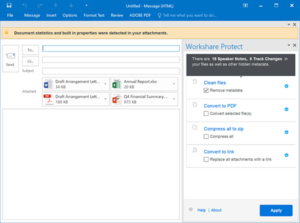
Step 2: Choose which metadata to remove
The Clean files area is where you remove metadata.
By default, all metadata will be removed from all of your files.
If you’re working quickly and just want to know that your documents will be secure, leave the Remove metadata checkbox selected and skip to step 4.
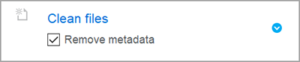
Not all metadata is sensitive or confidential, and Workshare enables you to decide if you want to leave some kinds of metadata in your files.
If you want to choose exactly which metadata is removed from which files, follow these steps:
- Click the Clean files areato expand it. You’ll see a list of the files attached to your email.
- Click a file name to expand it. You’ll see a list of the metadata contained in that file.
- Tick all the boxes for the metadata you’d like to remove.
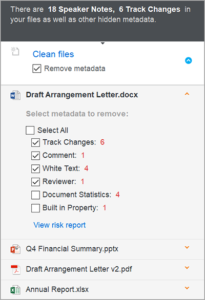
Tip! If you want to find out more about the metadata in an attachment, click View risk report.
Step 3: Select any other security options
The Interactive Protect panel offers you other ways to secure your files. You can choose any or all of these options.
Option 1: Convert to PDF
Workshare enables you to convert files to PDF (assuming they’re not PDFs already).
A file that’s been converted to PDF is more secure because it’s harder to edit. Adobe provides more reasons to convert to PDF, which you can read about in their blog.
To convert all your attachments, select Convert selected file(s).
To convert only some attachments, click the Convert to PDF area to expand it, then select which files to convert.
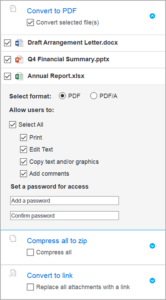
With Convert to PDF expanded, you can also:
- Specify whether the file should be converted to the archive format of PDF (known as PDF/A).
- Determine what can be done with your PDF (like whether users can print it).
- Set a password that will then be required to view the PDF.
Option 2: Compress to zip
When you zip files, you’re making them smaller and putting them into a single folder (which has a .ZIP extension). A reduced size is useful because it means large files take up less space in your inbox.
But did you know you can enhance security by setting a password for your ZIP folder?
First, select the Compress all checkbox.
Next, click the Compress all to zip area to expand it. With the option expanded, you can set a password.
Option 3: Convert to link
This option saves your documents to a folder in Workshare Connect.
Folders in Workshare Connect are accessible online, from anywhere.
They provide these additional security benefits:
- You can manage folder members and folder permissions at any time, so you can revoke access if you need to.
- You have an audit trail of who’s logged in to access the folder as well as which files they’ve downloaded.
- Privacy is ensured by end-to-end HTTPS transfer and 256-bit AES encryption.
To use this option, select Replace all attachments with a link. When you apply the option (see step 4), a link to the Workshare folder is added to the body of your email so your email recipients know where to go.
Step 4: Apply your options (and, in the meantime, write your email)
All set? Click Apply.
In most cases, your options will be applied in seconds. But if you have large files that are taking a bit longer, that’s ok – you can keep working while they’re processing.
Go ahead and write your email, add a subject and choose email recipients.
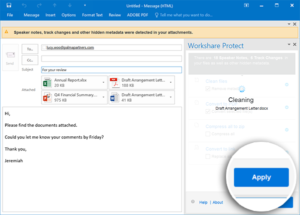
If you want to preview your documents to see what your email recipients will see, just double-click the attachments.
Everything’s ready! You can send your email.
Remove metadata from files on your computer
You don’t have to be emailing a document to clean it. You can clean files that are on your computer.
If you have Word open:
- Select the Workshare tab and click Content Risk. The Document Risk Report opens, showing you which metadata is in your document.
- Click Remove. The Advanced Optionsdialog opens.
- Select all the metadata you’d like to remove.
- Click OK.
If your documents are on your computer:
- Right-click one or more documents (or even a folder full of documents).
- Select Send to > Workshare Batch Clean. The Batch Clean dialog opens.
- Select all the metadata you’d like to remove.
- Click Clean.
Find out more
Check out the Workshare Professional 10 User Guide for anything and everything related to removing metadata from Word documents and PDF files.
Removing metadata is a great first step in protecting your files, but if you want to take email attachment security to the next level, you need to control who can receive your email attachments – and block anyone who shouldn’t. Read all about it here: Recipient checking specifically for law firms
A word to the wise, remove metadata from your Word documents
It’s really easy to forget to remove hidden metadata from documents, but man, can it be embarrassing. And that’s the best-case scenario.
Check out this example published in The Guardian, UK, where the sender forgot to remove the track changes in a Word document they submitted to the newspaper.
Most people go about their business every day in blissful ignorance of the fact that the Word documents they’re working on are also working away in the background creating hidden metadata. This metadata might include document properties, redacted or deleted text, or notes made during a review cycle – as in the aforementioned example.
All this metadata can be completely confidential and shared completely inadvertently with other people.
The problem isn’t that metadata is added to a Word document, it can be useful for indexing and document management. The problem is that metadata can be difficult to fully identify and remove manually from a Word document you’re sharing.
For example, adding comments and using track changes is helpful when you’re working on a file, but if a change isn’t accepted, it remains in the document, even though you may no longer be able to see it.
The cost of not removing metadata from Word
It’s best practice to remove metadata from Word documents before they’re shared, but doing this manually is completely impractical. When you need to work on documents with people outside your organization, or to send information to others by sharing attachments, removing metadata from Word documents is probably the last thing on your mind – even if the content is sensitive. You might be under time-pressure, you might just be sending a quick email, but not removing the metadata from Word documents before you share them could come back and bite you – and that sucks.
Seriously though, omitting to remove metadata from Word documents could expose you, your colleagues or your company to serious risk. As a minimum, if critical metadata leaks it could lead to loss of confidence, clients or to disciplinary action. At worst, it could create serious reputational damage and even legal suits, especially if personally identifiable information is involved. With the advent of the GDPR, the fines associated with this kind of data leak could have disastrous consequences for firms.
The simple way to remove metadata from Word documents? Let automation take care of it!
So, what’s the best way to ensure the Word documents you share outside your organization don’t carry sensitive or confidential metadata?
Firstly, you need to be mindful that metadata almost certainly exists in every Word document you’re sending. Just because you can’t see it doesn’t mean it’s not there. Once you’re cognizant of that fact you can move on with removal.
Secondly, you need to be aware of all the methods you use to share Word documents. Not just your desktop email client, but your mobile device and any file sharing methods you use to share outside of the office. They must be sanctioned by IT and fall under your firm’s compliance policy, otherwise, it’s just cheating.
If you follow the steps above then you can get a relatively inexpensive, but comprehensive metadata cleaning tool that protects the files you share – and you’re covered.
An automated solution will apply your company’s security policies, spot sensitive content and then remove metadata from Word documents. The solution should also be integrated with Outlook and your Exchange email Server to apply protection across your desktop, mobile or online sharing platforms. All this takes place without the need for any manual intervention, which basically means you can’t forget to remove the metadata from your Word documents, because the system will do it for you, without slowing you down.
What’s next?
Give Workshare a call if you’d like to talk more about this – we love a good metadata removal chat!
]]>